Overview
SNI-only mode is the recommended configuration for all Imperva Cloud WAF sites. It enables full utilization of site certificates, custom cipher templates, and mutual TLS (mTLS) - features that don't work for non-SNI connections.
However, before switching a site to SNI-only mode, it is important to understand how much of your current traffic actually relies on connections without SNI. Doing so can disrupt legitimate users running older TLS clients or non-standard HTTP libraries.
This guide walks you through creating a custom rule in Imperva Cloud WAF that silently flags all Non-SNI requests as security events, without blocking any traffic. You can then review those events in the Security Events page or SIEM logs to make an informed decision before enabling SNI-only mode.
Background: What is SNI and Why Does It Matter?
Server Name Indication (SNI) is a TLS extension that allows an HTTP client to declare the hostname it is connecting to during the TLS handshake. This is critical in multi-tenant environments, where a single IP address serves thousands of different sites.
When a client connects without SNI, Imperva has no way to identify which specific domain and site is being targeted at the TLS layer. As a result:
• Dedicated site certificates (custom certificate or Imperva site cetificates) cannot be served - a shared Imperva account certificate is served instead if possible.
• Custom cipher and TLS version templates configured for the site are ignored
• mTLS enforcement cannot be applied
Non-SNI connections are typically sent by:
• Older HTTP clients or libraries (e.g., legacy Java HTTP clients, old curl versions)
• Automated scanners and monitoring tools with outdated TLS stacks
• Misconfigured internal services
Once SNI-only mode is enabled on a site, any connection arriving without an SNI extension will be rejected after the TLS handshake. That is why auditing Non-SNI traffic before enabling the feature is essential.
The Approach: Alert Without Blocking
Imperva Cloud WAF allows customers to create fully customizable security rules using a simple filter language. It supports a boolean filter parameter: hasSNI, which evaluates to true when the incoming TLS connection includes a valid SNI extension, and false when it does not.
By creating a custom security rule with the filter hasSNI == false and the action set to Alert, you instruct Imperva to:
• Allow the request to proceed normally. No traffic is disrupted
• Generate a security event for every Non-SNI request hitting your site
• Surface these events in the Security Events page or SIEM logs for your review
This gives you a real-time, non-intrusive view of your Non-SNI traffic volume and the clients responsible, without any risk to production availability.
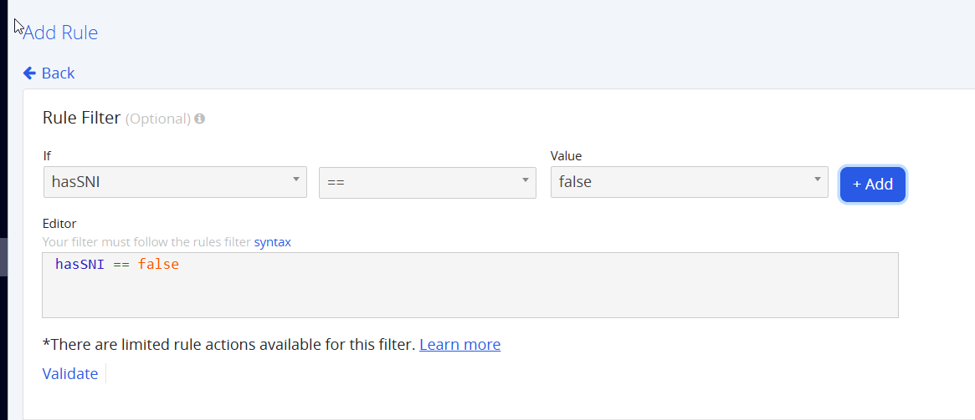
Recommendation: Let the rule run for at least 7–14 days before drawing conclusions, as some Non-SNI traffic may be periodic (e.g., scheduled monitoring jobs, monthly batch processes, or low-frequency automated clients).
Reviewing Non-SNI Events in the Security Events Page
Once the rule is active, Non-SNI requests will appear in your site's Security Events page within minutes. Use the Rule Name filter or search to isolate these events.
For each event, you can inspect:
• Client IP address - identify the source of the Non-SNI traffic
• User Agent - understand what client software is making the connection
• Timestamp and frequency - gauge traffic volume over time
• URL and HTTP method - determine which endpoints are being accessed
Export the events to a CSV or integrate with your SIEM via the Imperva SIEM log integration to run deeper analysis across longer time windows.
What to Look for in Your Results
Once you have collected event data, assess the following:
Volume of Non-SNI traffic
If Non-SNI events are rare or absent, enabling SNI-only mode on your site carries minimal risk. If the volume is high, investigate before proceeding.
Identity of the clients
Review the IP addresses and User Agents. Common findings include:
• Internal monitoring or uptime-check agents - these can usually be reconfigured to send SNI
• Third-party API consumers - may require communication and a migration timeline
• Security scanners - generally acceptable to block or let fail
• Unknown or unexpected sources - worth investigating further understand the source.
Criticality of the endpoints
If Non-SNI requests are hitting critical application paths, take extra care to ensure those clients are migrated before enabling SNI-only mode.
Next Steps: Enabling SNI-Only Mode
Once you have reviewed your Non-SNI event data and are confident that the volume is acceptably low or that the remaining clients can tolerate a connection drop, you can safely proceed:
• Reach out to affected clients or internal teams to update their TLS configuration to include the SNI extension
• For clients you control, update to a modern TLS library or HTTP client that sends SNI by default
• Once all critical clients are migrated, enable SNI-only mode on the site
Once SNI-only mode is enabled, Non-SNI connections are rejected after the TLS handshake, before reaching the WAF rule engine. The alert rule will therefore stop firing for these connections and can be deleted at this phase.
Summary
The hasSNI == false custom rule is a simple, safe, and effective way to audit your site's Non-SNI traffic before enabling SNI-only mode. The approach is non-disruptive, requires no changes to your site configuration, and gives you the visibility you need to make a confident decision.
#CloudWAF(formerlyIncapsula)